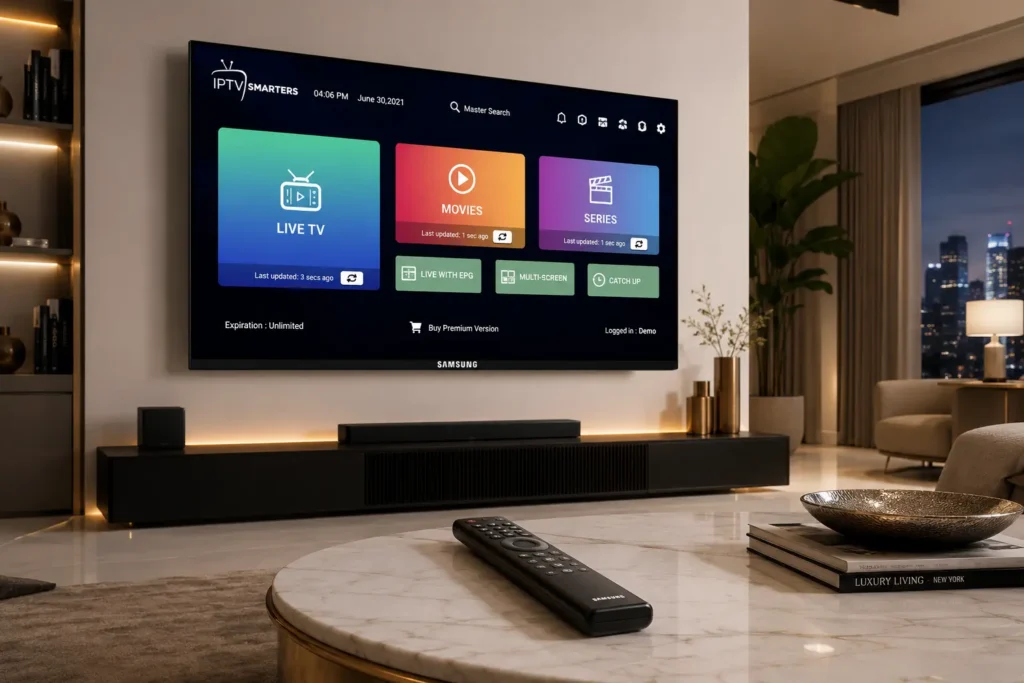
How to Setup IPTV on Samsung Smart TV: Full 2025 Guide
If you’ve been searching for a reliable way to learn how to setup IPTV on Samsung Smart TV, you’ve landed on exactly the right guide. Samsung Smart TVs are among the most popular televisions on the planet — and combining one with a quality IPTV subscription gives you instant access to thousands of live channels, on-demand movies, international content, and live sports, all without a cable box. In this comprehensive walkthrough, we’ll cover every method, every app, and every setting you need to get up and running today.
SUBSCRIBE NOW
Why Samsung Smart TV Is Perfect for IPTV Streaming
Before jumping into the setup process, it’s worth understanding why Samsung Smart TVs have become the go-to hardware for IPTV enthusiasts worldwide.
Samsung’s proprietary Tizen OS — the operating system powering most modern Samsung Smart TVs — offers a responsive, app-friendly environment that supports a growing number of IPTV applications. Unlike older “smart” TVs that were rigid and difficult to customize, Tizen allows sideloading and third-party app installation through multiple methods.
Key advantages of using IPTV on a Samsung Smart TV:
- No extra hardware required — your TV is the streaming device
- Large screen experience — enjoy live sports and 4K content on a premium display
- Built-in Wi-Fi — connect directly to your home network
- Remote-friendly navigation — Samsung’s SmartThings remote is intuitive for app browsing
- Multiple setup methods — from native apps to sideloading APKs
Whether you’re cutting the cord for the first time or upgrading from a Fire Stick setup, Samsung Smart TVs deliver a premium, all-in-one IPTV experience. If you’re also considering other devices, our detailed guide on installing IPTV on a Fire TV Stick for a portable streaming solution is worth reading alongside this one.
What You Need Before You Setup IPTV on Samsung Smart TV
Getting your setup right from the start saves hours of troubleshooting. Here’s everything you’ll need:
Essential Requirements Checklist
- ✅ Samsung Smart TV running Tizen OS (2016 model or newer recommended)
- ✅ Active IPTV subscription with M3U playlist URL or Xtream Codes credentials
- ✅ Stable internet connection — minimum 15 Mbps for HD; 30+ Mbps for 4K
- ✅ USB flash drive (required for sideloading APK method — 8GB minimum)
- ✅ A Windows or Mac computer (for the developer mode method)
- ✅ Samsung account linked to your Smart TV
💡 Important: Before starting the setup, test your IPTV subscription on your smartphone or PC using a free player like VLC. This confirms your credentials are active and your provider’s servers are online — saving you from false troubleshooting on the TV itself.
How to Setup IPTV on Samsung Smart TV: 3 Proven Methods
There are three main approaches to getting IPTV working on a Samsung Smart TV. We’ll cover all three so you can choose the one that best fits your technical comfort level.
SUBSCRIBE NOW
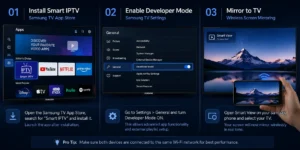
Method 1: Using Smart IPTV App (Easiest Method)
Smart IPTV (also known as SIPTV) is one of the most popular dedicated IPTV applications available directly in the Samsung Smart TV App Store. It’s designed specifically for Tizen OS and offers a clean, remote-friendly interface.
Steps to install and configure Smart IPTV:
- Press the Home button on your Samsung remote
- Navigate to Apps and open the Samsung App Store
- Search for “Smart IPTV” in the search bar
- Select the app and click Install
- Once installed, open the app — it will display your TV’s MAC address on screen
- On your computer or phone, visit siptv.eu and enter your TV’s MAC address
- Paste your M3U playlist URL from your IPTV provider into the URL field
- Click Send to push the playlist to your TV
- Back on the TV, press the refresh button (or restart the app)
- Your channels will now load automatically
Pros: Native app, no sideloading, clean interface Cons: One-time activation fee (~$5.49); limited to M3U format
Method 2: Using Samsung Developer Mode (Sideload APKs)
This is the most powerful method, allowing you to install full Android APK-based IPTV players like TiviMate or IPTV Smarters Pro directly onto your Samsung TV. It requires enabling Developer Mode first.
Step 1: Enable Developer Mode on Your Samsung Smart TV
- Go to Settings > Support > About This TV
- Repeatedly press the volume+ button on the model number until a “Developer Mode” dialog appears (approximately 5 presses)
- Toggle Developer Mode ON and enter your TV’s IP address when prompted
- Restart your TV to apply the changes
Step 2: Install Tizen Studio on Your Computer
- Download and install Tizen Studio (free) from developer.samsung.com on your Windows or Mac computer
- Open Tizen Studio and connect it to your Samsung TV via the same Wi-Fi network
- In Tizen Studio’s Device Manager, add your TV’s IP address as a new device
Step 3: Sideload Your IPTV Player APK
- Download the APK file of your chosen IPTV player (TiviMate, IPTV Smarters Pro, etc.) on your computer
- In Tizen Studio, go to Tools > Package Manager and ensure the TV Extensions package is installed
- Use the SDB (Samsung Debug Bridge) command to push the APK:
- The app will appear in your TV’s Recent Apps or Downloaded Apps section
Step 4: Configure Your IPTV Subscription
Once the app is installed, the configuration process mirrors any standard IPTV player:
- Open the app and select Add Playlist
- Choose M3U URL or Xtream Codes depending on your provider’s format
- Enter your credentials and confirm
- Wait for channels to load (1–5 minutes for large playlists)
Pros: Full-featured apps, best UI, supports all formats Cons: Requires technical setup; Developer Mode resets every 24 hours (workaround: keep Tizen Studio connected)
Method 3: Screen Mirroring from Your Phone or PC
If you prefer a zero-installation approach, Samsung’s built-in screen mirroring lets you stream IPTV from your phone or laptop directly to the big screen.
Using Samsung DeX / Smart View:
- On your Samsung phone, open your IPTV app (IPTV Smarters Pro, TiviMate mobile, etc.)
- Swipe down from the top of your phone and tap Smart View or Screen Mirror
- Select your Samsung Smart TV from the device list
- Accept the connection request on the TV
- Your phone’s screen — including your IPTV stream — will appear on the TV
Using a Windows PC (Miracast):
- Press Win + K on your keyboard to open the Cast menu
- Select your Samsung Smart TV from the list
- Open your IPTV player on your PC — it will display on the TV
Pros: No installation required, works immediately Cons: Phone battery drains quickly; slight latency; phone screen stays active
Comparing All Three IPTV Setup Methods for Samsung TV
| Feature | Smart IPTV App | Developer Mode | Screen Mirroring |
|---|---|---|---|
| Ease of Setup | ⭐⭐⭐⭐⭐ | ⭐⭐⭐ | ⭐⭐⭐⭐ |
| App Quality | Good | Excellent | Depends on phone |
| Cost | ~$5.49 one-time | Free | Free |
| Stability | High | Medium | Low |
| Recommended For | Beginners | Power users | Occasional use |
For most users, Method 1 (Smart IPTV) offers the best balance of simplicity and reliability. If you want the full-featured experience of apps like TiviMate, Method 2 is worth the extra effort.
Troubleshooting IPTV Issues on Samsung Smart TV
Even after a successful setup, you may encounter occasional problems. Here are the most common issues and their proven solutions.
SUBSCRIBE NOW
Buffering and Freezing
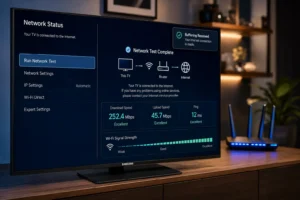
- Check your internet speed — run a speed test directly on the TV (Settings > Support > Self Diagnosis > Speed Test)
- Switch from Wi-Fi to Ethernet using a Samsung Ethernet adapter for a stable wired connection
- Change the stream quality in your IPTV player from HD to SD temporarily
- Restart your router and TV simultaneously
Channels Not Loading
- Verify your M3U URL is still valid — IPTV providers occasionally update their playlist links
- Check your subscription status with your provider
- Re-enter your credentials in the app settings
Smart IPTV Showing “No Channels”
- Revisit siptv.eu and re-upload your M3U URL
- Make sure there are no spaces or typos in the playlist URL
- Try a different M3U URL if your provider offers backup links
Developer Mode Keeps Disabling
This is a known Samsung limitation — Developer Mode disables itself every 24 hours when the Tizen Studio connection is inactive. The only permanent workarounds are:
- Keep a PC running Tizen Studio connected to the same network
- Use Method 1 (Smart IPTV) as a more stable alternative
Choosing the Right IPTV Service for Samsung TV
The best IPTV setup is only as good as the service behind it. When evaluating providers, consider our full channel list to see the breadth of content available — from regional news to premium sports packages.
What to Look for in an IPTV Provider
- Channel variety — live sports, international channels, PPV events
- VOD library — movies and series updated regularly
- Server uptime — look for providers advertising 99.9% uptime
- EPG (Electronic Programme Guide) support — makes navigation far easier
- Multiple connections — useful if you have more than one TV in the house
- Responsive support — fast response via live chat or ticket system
Always review the provider’s terms of service and refund policy before committing to a subscription — a trustworthy provider will have clear, transparent policies on both.
Tips to Get the Best IPTV Experience on Your Samsung TV
Once you’ve completed the Samsung Smart TV IPTV configuration, these tips will help you maximize your streaming quality:
Optimize Your Network for IPTV
- Use a 5GHz Wi-Fi band instead of 2.4GHz to reduce interference and increase speed
- Position your router within line-of-sight of your TV whenever possible
- Enable QoS (Quality of Service) on your router to prioritize streaming traffic
- Consider a mesh Wi-Fi system if your TV is far from the router
Use a VPN for Privacy and Throttling Prevention
Some ISPs deliberately throttle streaming traffic. A VPN encrypts your connection, bypassing throttling and protecting your privacy. Look for VPN services with a dedicated Smart TV app or router-level installation option, since Samsung’s Tizen OS doesn’t natively support VPN apps.
Keep Your App Updated
IPTV apps frequently release updates that fix bugs, improve stability, and add new features. Check for updates regularly in the Samsung App Store or re-download the latest APK if sideloading.
Is It Legal to Setup IPTV on Samsung Smart TV?
This is one of the most common questions we see, and the answer is nuanced. IPTV as a technology is completely legal — it’s simply a method of delivering television over the internet. Major platforms like YouTube TV, Disney+, and Apple TV+ all use IPTV infrastructure.
The legal grey area comes from unlicensed providers who redistribute copyrighted content without proper agreements. To stay on the right side of the law:
- Choose providers who hold legitimate content licenses
- Avoid services offering thousands of premium channels for unusually low prices
- Familiarise yourself with the privacy and data practices of any service you subscribe to
When in doubt, contact a reputable IPTV provider directly to ask about their licensing arrangements before subscribing.
SUBSCRIBE NOW
Final Thoughts
You now have everything you need to confidently complete the how to setup IPTV on Samsung Smart TV process — regardless of your technical experience. From the beginner-friendly Smart IPTV app method, to the power-user Developer Mode sideloading approach, to the effortless screen mirroring option, Samsung Smart TVs offer genuine flexibility for every type of IPTV user.
The key to a great experience lies in three pillars: a reliable IPTV subscription, a fast and stable internet connection, and the right app for your viewing habits. Get those three right, and you’ll wonder how you ever went back to cable.
Ready to explore what’s available? Browse our complete channel listing to see the full range of live TV, sports, and entertainment packages on offer — and start your IPTV journey today.