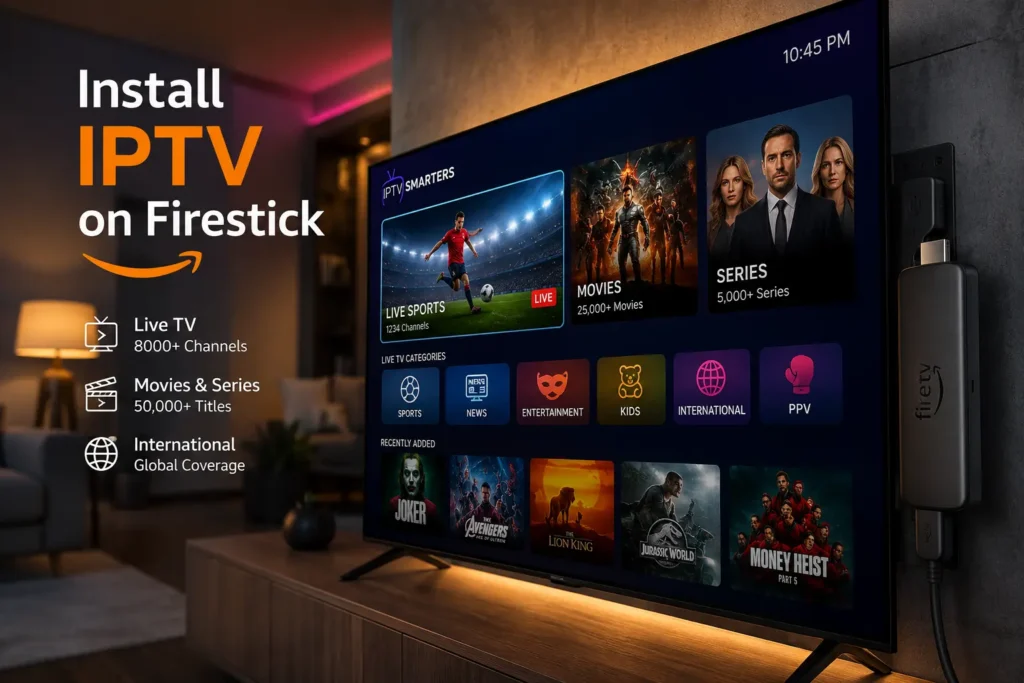
How to Install IPTV on Firestick: The Complete 2026 Guide
If you’ve been wondering how to install IPTV on Firestick, you’re in the right place. Amazon’s Fire TV Stick is one of the most popular streaming devices in the world — and pairing it with an IPTV service unlocks thousands of live TV channels, on-demand movies, sports, and international content, all through your internet connection. In this step-by-step guide, we’ll walk you through the entire setup process, from enabling sideloading to launching your first IPTV stream, even if you’re a complete beginner.
SUBSCRIBE NOW
What Is IPTV and Why Use It on Firestick?
IPTV (Internet Protocol Television) delivers television content over the internet rather than through traditional satellite or cable infrastructure. Instead of paying for bloated cable bundles, IPTV lets you subscribe to exactly the channels and content you want — often at a fraction of the cost.
The Amazon Fire TV Stick is the ideal device for IPTV because:
- It runs a customized Android-based OS, making it compatible with most IPTV apps
- It’s affordable and portable — plug it into any HDTV with an HDMI port
- It supports 4K streaming (on newer models) for crystal-clear picture quality
- It connects seamlessly to your home Wi-Fi network
- The remote includes Alexa voice control for easy navigation
Whether you want to watch Premier League football, international news, or binge an on-demand library, IPTV on Firestick gives you complete control over your viewing experience.
What You Need Before You Begin
Before diving into how to install IPTV on Firestick, make sure you have the following ready:
Hardware & Connectivity Requirements
- ✅ Amazon Fire TV Stick (any generation — Lite, 4K, or 4K Max)
- ✅ A stable internet connection (minimum 10 Mbps; 25+ Mbps recommended for HD/4K)
- ✅ A television with an HDMI port
- ✅ The Fire TV remote (or the Fire TV mobile app)
Software & Account Requirements
- ✅ An active IPTV subscription from a provider (with an M3U playlist URL or Xtream Codes login)
- ✅ An Amazon account linked to your Firestick
- ✅ Access to the Downloader app (free on the Amazon App Store)
💡 Pro Tip: Always test your IPTV subscription on another device (smartphone or PC) before setting it up on your Firestick to confirm it’s active and working.
How to Install IPTV on Firestick: Step-by-Step
Now let’s get into the core process. Follow these steps carefully and you’ll be streaming within minutes.
SUBSCRIBE NOW
Step 1: Enable Apps from Unknown Sources
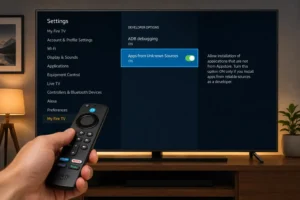
By default, the Firestick only allows apps from the Amazon App Store. Since most IPTV players aren’t listed there, you must enable sideloading first.
- From your Firestick home screen, go to Settings
- Select My Fire TV (or Device on older models)
- Tap Developer Options
- Toggle “Apps from Unknown Sources” to ON
- Confirm the warning prompt by selecting Turn On
This one-time step is essential — without it, you cannot install third-party IPTV applications.
Step 2: Install the Downloader App
The Downloader app acts as a browser and file manager, letting you download APK files directly onto your Firestick.
- Press the Home button on your remote
- Go to the Search icon (magnifying glass) at the top of the screen
- Type “Downloader” and select it from the results
- Choose the app by AFTVnews and click Download
- Once installed, Open the app and allow storage permissions
Step 3: Download Your IPTV Player APK
There are several excellent IPTV player apps available. The most popular choices include:
| App | Best For | Format Supported |
|---|---|---|
| TiviMate | Power users, best UI | M3U, Xtream Codes |
| IPTV Smarters Pro | Beginners, clean interface | M3U, Xtream Codes |
| GSE Smart IPTV | Multi-format support | M3U, JSON, XSPF |
| Perfect Player | Lightweight, fast | M3U, XSPF |
To download your chosen app via Downloader:
- Open the Downloader app
- In the URL bar, type the direct APK download link for your chosen IPTV player (available on each app’s official website)
- Press Go and wait for the download to complete
- When prompted, tap Install
- After installation, select Open or Done
Step 4: Configure Your IPTV Subscription
This is where your IPTV provider’s credentials come in. The process varies slightly depending on the app, but here’s the general workflow using IPTV Smarters Pro as an example:
- Open the app and tap “Add User”
- Choose your login method:
- M3U URL — paste the M3U playlist link from your provider
- Xtream Codes API — enter the server URL, username, and password
- Give your playlist a name (e.g., “My IPTV”)
- Tap Add User / Confirm
- Wait for the playlist to load — this may take 1–3 minutes depending on your channel count
Once loaded, your channels, VOD content, and EPG (Electronic Programme Guide) will all appear automatically.
SUBSCRIBE NOW
Step 5: Navigate and Start Watching
With your playlist loaded:
- Browse Live TV for real-time channel streaming
- Explore Movies and Series under the VOD section
- Use the EPG guide to see what’s on and schedule viewing
- Adjust video quality settings inside the player if buffering occurs
Troubleshooting Common IPTV Issues on Firestick
Even with the best setup, you may encounter occasional hiccups. Here are the most common issues and their fixes:
How to Fix Buffering When Streaming IPTV on Firestick
Buffering is the #1 complaint among IPTV users. The causes — and solutions — include:
- Slow internet: Run a speed test. You need at least 10 Mbps for HD and 25 Mbps for 4K
- Wi-Fi interference: Move your router closer or use a Wi-Fi extender
- Overloaded server: Try switching to a different server or stream URL in your player settings
- Firestick storage: Clear cache by going to Settings > Applications > Manage Installed Applications > [Your App] > Clear Cache
- VPN slowdown: If using a VPN, switch to a server geographically closer to you
EPG Not Loading Correctly
- Re-enter your M3U or Xtream Codes credentials
- Manually set the EPG URL in your player’s settings (your IPTV provider should supply this)
- Force close the app and relaunch
App Crashes on Launch
- Uninstall and reinstall the IPTV player APK
- Ensure your Firestick’s software is up to date (Settings > My Fire TV > About > Check for Updates)
- Free up storage by removing unused apps
Best IPTV Apps for Firestick in 2026
TiviMate — The Premium Choice
TiviMate is widely regarded as the gold standard for IPTV on Android-based devices. Its features include:
- Multiple playlist support — manage several IPTV subscriptions from one app
- Catch-up TV — watch previously aired content (if your provider supports it)
- Parental controls — lock adult channels with a PIN
- Picture-in-Picture mode — browse channels while watching
- Beautiful, customizable EPG grid interface
The free version is functional, but the TiviMate Premium unlock (one-time purchase) is highly recommended for serious users.
IPTV Smarters Pro — Best for Beginners
IPTV Smarters Pro offers an intuitive, mobile-style interface that’s extremely beginner-friendly. It supports both M3U and Xtream Codes, displays a clear EPG, and includes separate sections for Live TV, Movies, and Series.
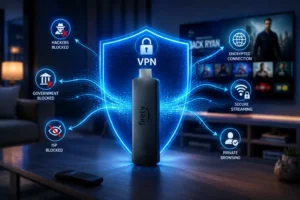
Should You Use a VPN with IPTV on Firestick?
This is one of the most frequently asked questions when learning how to install IPTV on Firestick — and the answer is: it depends.
Reasons to use a VPN:
- Protects your privacy and encrypts your internet traffic
- Bypasses ISP throttling that can cause buffering
- Allows access to geo-restricted content
Recommended VPNs for Firestick:
- ExpressVPN — fastest speeds, dedicated Fire TV app
- NordVPN — strong privacy, reliable connections
- Surfshark — budget-friendly, unlimited devices
To install a VPN, simply search for it in the Amazon App Store — most premium VPNs have official Fire TV apps available for direct download.
SUBSCRIBE NOW
Legal Considerations: Is IPTV on Firestick Legal?
IPTV technology itself is completely legal. Services like YouTube TV, Hulu Live, Sling TV, and Tubi all use IPTV technology and are fully licensed.
The legality concern arises when using unlicensed IPTV providers that redistribute copyrighted content without authorization. Always:
- Choose licensed IPTV providers who have content agreements in place
- Avoid suspiciously cheap services offering thousands of channels for a few dollars per month
- Check your local broadcasting regulations, as laws vary by country
Using a reputable, licensed IPTV service combined with this installation guide means you can enjoy your content with complete peace of mind.
Final Thoughts
Now that you know exactly how to install IPTV on Firestick, there’s nothing stopping you from transforming your TV into a world-class streaming hub. From enabling sideloading and installing the Downloader app, to configuring your playlist and troubleshooting buffering — you’re fully equipped to get started today.
The combination of a Fire TV Stick and a quality IPTV subscription is one of the most cost-effective ways to access live TV, sports, movies, and international content in 2026. Take the plunge, follow the steps above, and enjoy the future of television on your terms.